

Make an Excel report
Start with an Excel workbook that already has the layout you want. ISE Reporting fills the customer details and adds a row for each item. Download the result to continue working in Excel.
Try it here
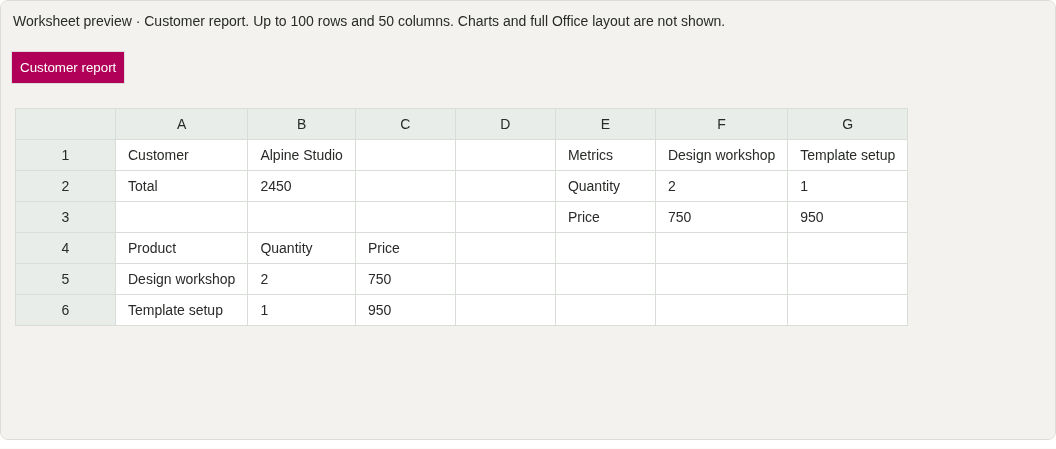
Section titled “Try it here”Edit the JSON data, inspect the template below it, and see the Live preview underneath. The result has two product rows. Data and cell-binding edits update the report automatically.
Fill an Excel workbook
Open full example ↗Sample data Edit JSON
Your result will appear here.
Technical error details
Loading sample…
Template
Edit a cell binding
Live preview
Result as text
Excel calculates formulas when you open the downloaded workbook.
Download the sample files
How the template knows what to fill
Section titled “How the template knows what to fill”An Excel Note marks a cell with the field it should use. This is the older note feature, not a threaded comment. The sample also has a table that repeats its row for every line item. Its small metric grid shows the same products side by side.
Download the template and use Review → Notes in Excel to inspect these markings. Keep the sample notes when you change the layout. The example uses the supplied workbook; use the reporting libraries or API for your own templates.
Reading your result
Section titled “Reading your result”The browser shows a worksheet grid with values and basic formatting. Use the worksheet tabs if your file contains several sheets. Open the downloaded workbook in Excel for charts, full formatting, and calculated formulas. Filling does not calculate Excel formulas.
Need to build a template from scratch? Start with expressions. Developers can find the full template library reference in the separate developer section.