

Word template reference
Introduction
Section titled “Introduction”This guide explains how to create Word templates using Structured Document Tags (SDTs / content controls) and DynamicExpresso expressions for dynamic content replacement.
Set a content control’s Tag to an expression evaluated against the object passed to Fill, such as this.Customer.Name. The this. prefix is optional for member access, so Customer.Name also works. Expressions can include comparisons, arithmetic, and formatting, such as Total.ToString("F2").
Supported Content Controls
Section titled “Supported Content Controls”- Text: Tag the control with an expression selecting the value, such as
Customer.Name. - Repeating section: Tag the section with a collection expression, such as
Lines. Its prototype repeating-section item contains controls whose tags are evaluated against each collection item. - Checkbox: Tag the control with an expression such as
Customer.IsActiveorTotal > 0. - Image: Insert a placeholder image and tag the picture content control with an expression such as
Customer.Logo. The value may be a URL, file path, or base64 image string. - Conditional section: Wrap content in a control tagged with
if:followed by an expression, such asif: Customer.IsActive. A false condition removes the wrapper and its contents; a true condition fills the contents and removes the wrapper.
Dropdown filling is not supported yet.
Example Template File
Section titled “Example Template File”The content-control example demonstrates text controls with expression tags. The fill tests show how templates are filled with application data.
Creating Tables
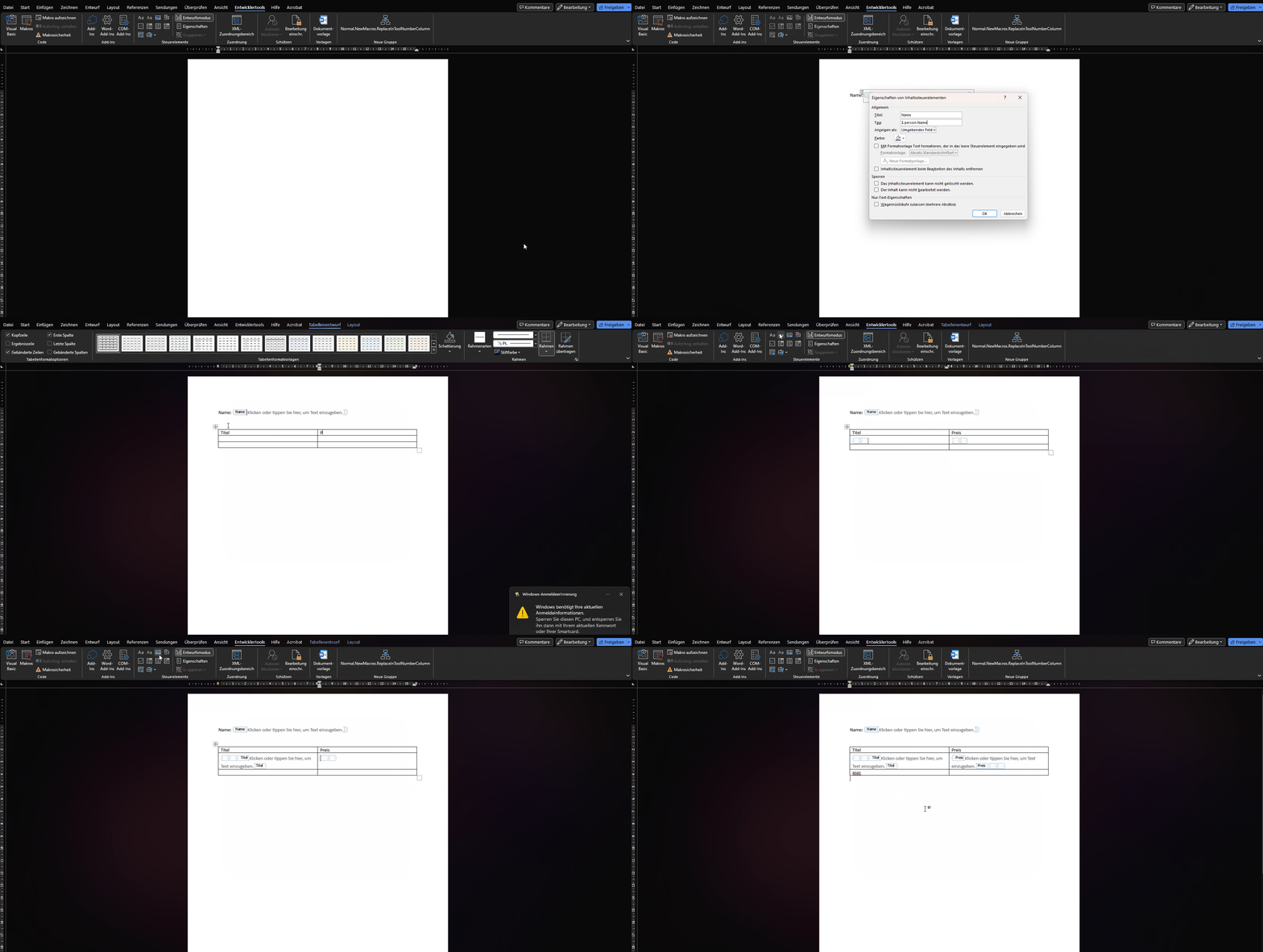
Section titled “Creating Tables”- Create a prototype table row in Word and select it.
- Add a Repeating Section Content Control around the row.
- Set the repeating section’s Tag to the collection expression, for example
Lines. - Keep the repeating-section item that Word creates inside the section as the prototype.
- Insert content controls in the prototype row’s cells and tag them with item expressions, for example
ProductandAmount.ToString("F2").
During filling, the prototype is cloned for each item in Lines. Inside each repeated item, this refers to that item. For nested repeats, select the child collection from the current item; its inner controls then bind to each child item. Use this to display an item that is itself a scalar, such as a string.
Named repeat contexts and report data
Section titled “Named repeat contexts and report data”The default DOCX interpreter exposes root as the original object passed to Fill, and block["Title"] as the current item of an enclosing repeat with that Word content-control Title (w:alias). The repeat’s Tag remains its collection expression.
For an outer repeat titled Orders with tag this.Orders, and an inner repeat titled Lines with tag this.Lines:
| Expression inside Lines | Value |
|---|---|
this.Product |
Current line’s product |
block["Lines"].Product |
Same current line’s product |
block["Orders"].Number |
Enclosing order’s number |
root.ReportDate |
Report-level date |
Repeat collection expressions can also use root or an already-enclosing named block. A repeat’s own title becomes available only inside its items. Conditions preserve the surrounding contexts. Scalar items work with this or block["Title"] directly.
Titles are case-sensitive and must be unique along the active repeat ancestry. Sibling repeats may reuse a title; sibling and completed repeats cannot be referenced. Empty titles do not define an alias. Unknown names and duplicate ancestor titles produce fill diagnostics (preview returns a binding error). Renaming a title requires updating expressions that reference it; references are not automatically rewritten. Escape quotes and backslashes in title string literals as in C#.
root and block are reserved expression variables. If input data uses those property names, qualify them with this, for example this.root. Custom expression interpreters can opt into these contexts by implementing IContextualExpressionInterpreter; existing custom factories remain supported.
Creating Editable Charts
Section titled “Creating Editable Charts”Editable charts keep Word’s embedded XLSX workbook synchronized with the visible chart. Recipients can use Edit Data in Word and see the generated values instead of the template placeholders.
Enable chart filling when loading the template:
using var template = DocxTemplate.New("Templates/report.docx", new DocxTemplateOptions{    EnableChartFeature = true});
using var report = template.Fill(chartData);report.Save("Output/report.docx");
Word setup
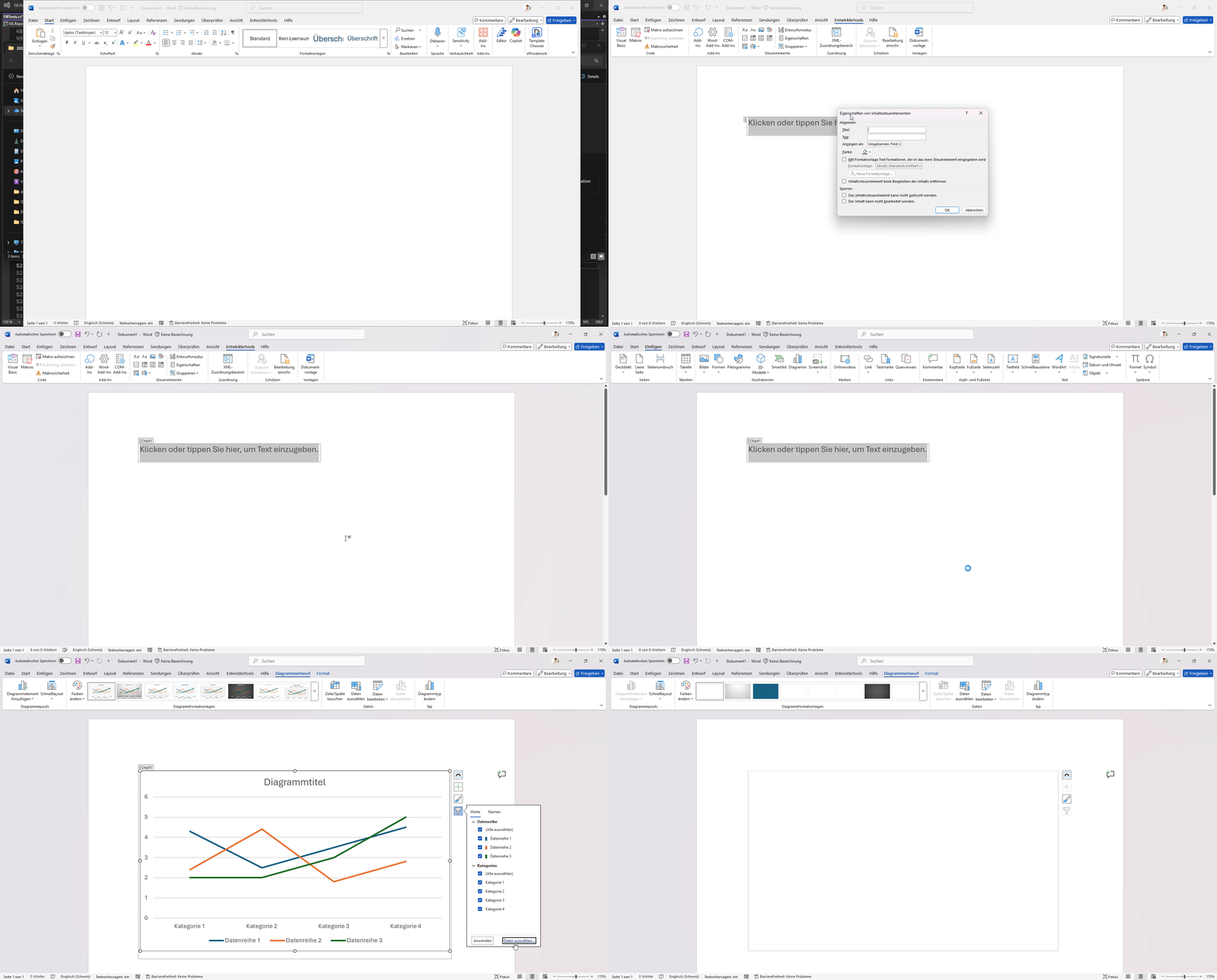
Section titled “Word setup”- In Word, insert a Rich Text Content Control from the Developer tab.
- Set its Tag to a DynamicExpresso expression that selects the chart data, such as
SalesByFruit. Usethiswhen the object passed toFillis the chart collection itself. - Insert exactly one standard Line Chart inside the content control.
- Keep one series in the chart. It is the prototype whose line width, cap, joins, dash, marker, effects, and other non-color series formatting is cloned for generated series.
- Choose the generated series colors with Chart Design → Change Colors. Explicit line colors on the prototype are removed during generation so Word can cycle through the chart’s palette (
accent1,accent2, and so on) by series index.
Embedded workbook setup
Section titled “Embedded workbook setup”Open the chart’s Edit Data workbook and retain a 2x2 template area. Add legacy Excel notes—not modern threaded comments—with this layout:
| Cell | Visible placeholder | Legacy note |
|---|---|---|
A1 |
blank | @repeat-grid columns fruit in this; rows point in fruit.Values; |
B1 |
example series name | fruit.Name |
A2 |
example category | point.Year |
B2 |
example numeric value | point.Value |
Convert A1:B2 to an Excel table. The table is required: its expanded range tells the DOCX chart integration how many series and points were generated.
Bind the chart’s prototype series to the four template cells:
- series name:
B1; - categories:
A2; - values:
B2.
Do not delete the prototype series or all workbook data. The filler expands the table to the right for series and downward for points, updates the embedded workbook, rewrites the chart formulas, and refreshes the chart caches.
The SDT expression is evaluated first, and its result becomes this inside the embedded XLSX template. For example, when the SDT tag is SalesByFruit, the workbook directive can still use columns fruit in this.
Current limits
Section titled “Current limits”- One standard line chart per SDT.
- One table-wrapped, columns-outer
@repeat-gridper embedded workbook. - Shared category values must have the same count and order for every series.
- Categories may be stored strings or numbers; series values must be stored numbers.
- Formula cells, transposed grids, charts in repeating sections, shared embedded workbooks, and other chart types are not supported by the editable path.
- Templates without an editable
@repeat-gridcontinue to use the experimental cache-onlyChartDatabehavior.
Troubleshooting
Section titled “Troubleshooting”Editable-chart processing is all-or-nothing per chart: if anything below applies, that one chart is left exactly as authored (still bound to its content control) and the fill logs a warning tagged with the chart part’s URI and the SDT’s expression. Nothing else in the document is affected.
| Symptom | Likely cause | Fix |
|---|---|---|
| Chart still shows the template’s placeholder data | The SDT tag didn’t resolve to a single chart, or the chart has no embedded workbook at all | Confirm the content control wraps exactly one chart and the tag expression evaluates without error |
| Warning mentions “not a SpreadsheetML workbook” | The chart’s embedded package isn’t an .xlsx (e.g. it was replaced with another format) |
Re-insert the chart in Word so it gets a standard embedded workbook |
| Warning mentions “shared with another chart” | Two chart SDTs point at the same embedded workbook, usually from copy-pasting a filled chart | Insert a fresh chart for each SDT instead of duplicating one that already has a @repeat-grid |
| Warning mentions “one standard line chart” | The plot area has more than one chart group, or the chart isn’t a line chart | Use exactly one line chart per SDT; bar, pie, area, scatter, and bubble charts are not supported by this path |
| Warning mentions “exactly one repeating chart-data grid” | The embedded workbook’s @repeat-grid was skipped by XlsxTemplate (e.g. mismatched or misaligned data) or more than one grid/table exists |
Check that the bound collection matches the @repeat-grid shape and that only one 2x2 table carries the directive |
| Warning mentions “must be stored numeric values” or “must not be empty” | A generated category or series-value cell resolved to blank, text, or a formula | Ensure the bound expressions always produce non-null category and numeric value data |
Report Schema
Section titled “Report Schema”A template can carry the schema of the data it binds to, so a template author can find out which fields are available instead of reading the calling application’s source.
The schema is stored twice on purpose:
- the identity (
ReportSchemaId,ReportSchemaVersion, and optionallyReportSchemaTitleandReportSchemaUri) goes into the custom document properties, visible under File -> Info -> Properties -> Advanced Properties -> Custom; - the JSON Schema document goes into a custom XML part, so the template stays self-describing when it is passed around without the application that produced it.
Attaching a schema
Section titled “Attaching a schema”Generate the schema from the declared type the application passes to Fill, and attach it once:
var schema = ReportSchema.FromType<SalesReport>(    id: "iseag.sales-report",    version: "2.1.0",    title: "Sales Report");
using var template = DocxTemplate.New("Templates/report.docx");template.AttachSchema(schema);template.Save("Templates/report.docx");
Attaching replaces any schema already stored. A hand-written schema works too, via
ReportSchema.FromJson, FromStream or FromFile.
Generation targets declared types. An anonymous object produces unstable member names and is not a useful generation source, though anonymous data still validates fine against a schema generated from a real type.
Reading the schema back
Section titled “Reading the schema back”This is the authoring loop until dedicated tooling exists: extract the JSON Schema next to the template and write bindings against the fields it lists.
using var template = DocxTemplate.New("Templates/report.docx");template.ReadSchema()?.SaveDocument("sales-report.schema.json");ReadSchema() returns null when the template carries no schema.
Validation
Section titled “Validation”Validation is opt-in by attachment: a template with no schema behaves exactly as before,
whatever the mode says. When a schema is attached, the data handed to Fill is validated against it
before anything is filled.
using var template = DocxTemplate.New("Templates/report.docx", new DocxTemplateOptions{    SchemaValidation = SchemaValidationMode.Warn // Off | Warn | Throw});
using var filled = template.Fill(data);
if (filled.SchemaValidation.HasErrors){ foreach (var error in filled.SchemaValidation.Errors) { Console.WriteLine($"{error.InstanceLocation}: {error.Message}"); }}| Mode | Behaviour |
|---|---|
Off |
Never validate, even with a schema attached |
Warn (default) |
Log a warning per mismatch and continue filling |
Throw |
Throw ReportSchemaValidationException, which carries the full result |
A warning names the schema id and version, the JSON Pointer to the offending value, and the reason:
Schema mismatch at /OrderCount: data does not match iseag.sales-report version 2.1.0: Value is "string" but should be "integer"What is checked is the data, against the schema. Binding tags are arbitrary expressions rather than paths, so they are not statically checked against the schema.
For validation, .NET enum values are serialized as their names, matching generated schemas. Data supplied as JSON keeps its existing representation.
Generated reports
Section titled “Generated reports”A filled report keeps the schema, which makes it traceable to the model it came from. Strip it before distributing a report outside your trust boundary, since a schema describes internal structure and field names:
using var filled = template.Fill(data);filled.RemoveSchema();filled.Save("Output/report.docx");Notes and limits
Section titled “Notes and limits”- The
ReportSchemaUriis metadata. The library never fetches it, and never resolves external or remote$refvalues; resolving a schema against a registry is the application’s job. - The version is stored and reported verbatim. The library never parses, compares or ranges it -
compare
ReadSchema()?.Versionyourself if you need drift detection. - An unreadable or oversized stored schema degrades to “no schema” with a warning rather than failing the fill.
- Word and Excel list custom XML parts in the XML Mapping pane, so the schema store is visible there alongside genuine data-bound stores.
- Validation serialises the fill data with
System.Text.Jsonreflection. An application that disables reflection-based serialization (trimming, AOT, orJsonSerializerIsReflectionEnabledByDefault=false) still fills normally, but every fill reports a single “could not be represented as JSON for validation” warning instead of real results; run such applications withSchemaValidationMode.Off.
Image Replacement
Section titled “Image Replacement”Insert a picture content control, add a placeholder image, and size it appropriately. Set its Tag to an expression selecting the image source, such as Customer.Logo. Inside a repeating section, use an expression relative to the current item, such as Picture.
Expression Examples
Section titled “Expression Examples”| Purpose | Tag |
|---|---|
| Nested field | Customer.Name |
| Formatted amount | Total.ToString("F2") |
| Formatted date | Date.ToString("dd.MM.yyyy") |
| Checkbox condition | Total > 0 |
| Conditional content | if: Customer.IsActive |
| Repeating collection | Lines |
| Field inside a repeated line | Product |
Expressions access the members of the application data object. The attached JSON Schema helps discover fields, but does not validate the tags themselves.